Skip to tool

Restore old family photos, right in your browser

Fix fading, dust, scratches and blur. Bring faces back into focus and enlarge photos for printing. Your photos never leave this device.

Drop old photos here

JPEG, PNG or WebP. Several photos at once is fine.

Your photos stay on your device.

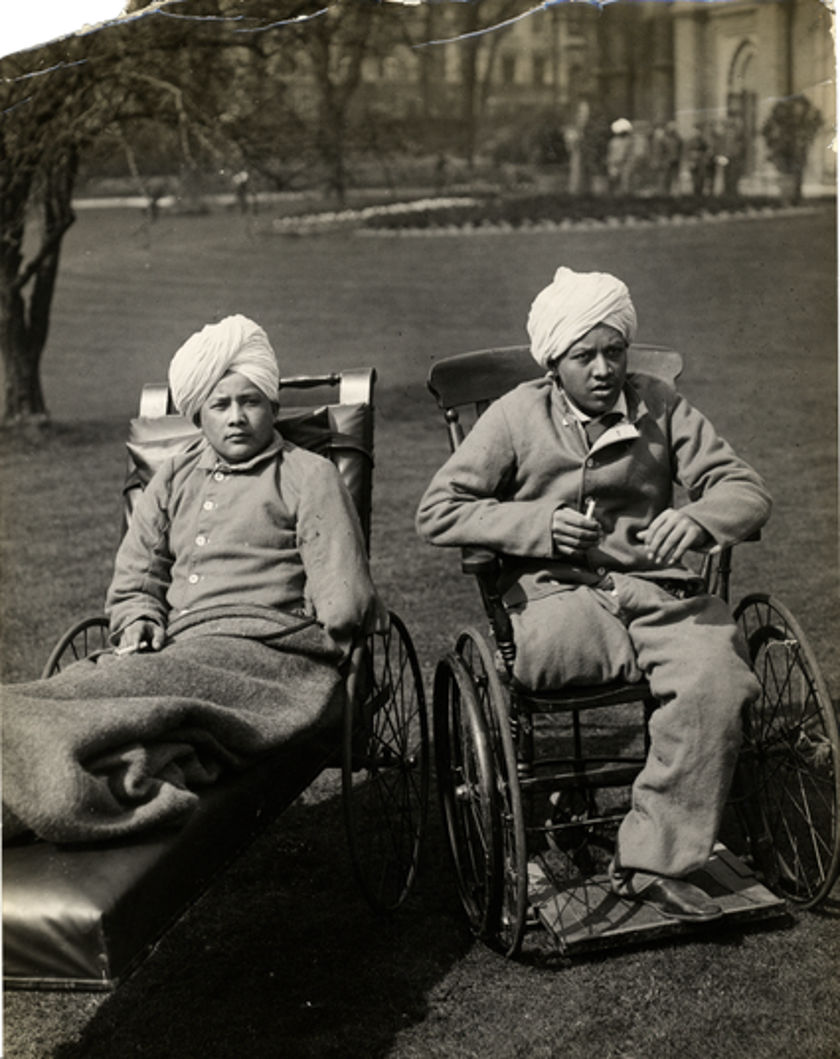
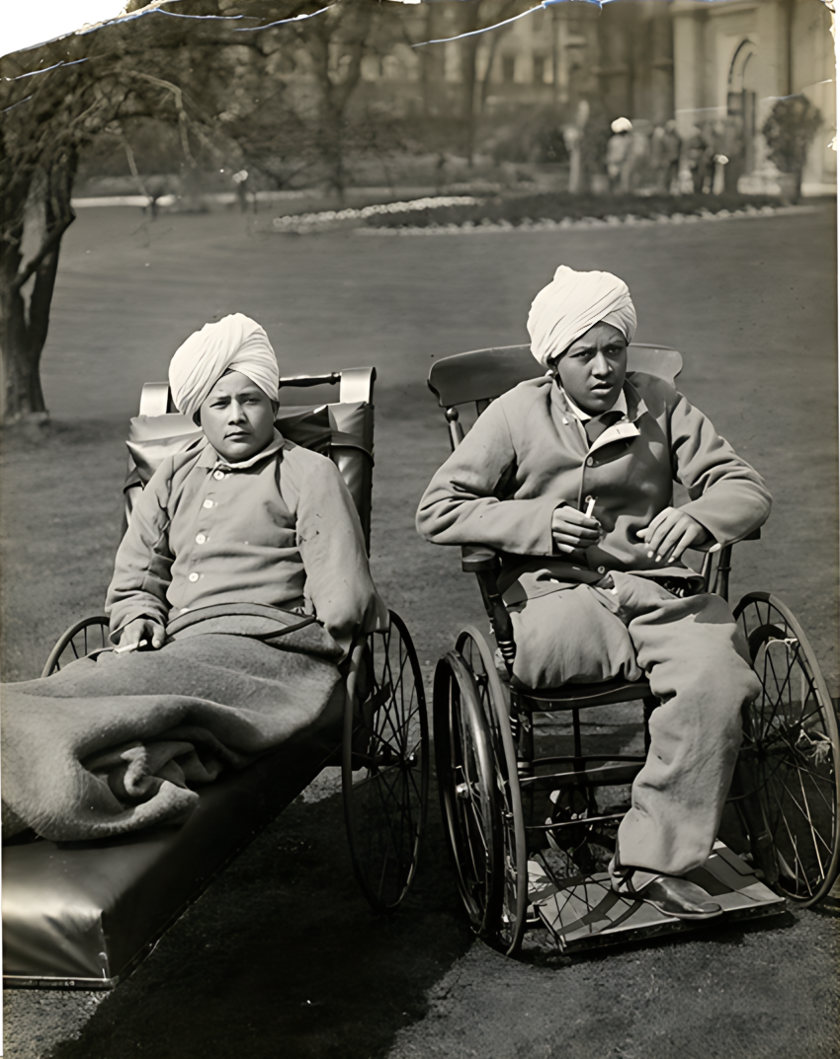
Bal Bahadur and Pim Bahadur of the Gurkha Regiment, Brighton, 1915. Restored with YaadRestore AI from a public-domain British Library scan.
OriginalRestored
Bal Bahadur and Pim Bahadur of the Gurkha Regiment, Brighton, 1915. Restored with YaadRestore AI from a public-domain British Library scan.

What it fixes

Faded prints
Brings back contrast and corrects the yellow or red cast that old colour prints develop.
Dust, scratches and tears
Finds specks and thin scratches by itself and fills them from the surrounding picture, leaving writing and faces alone. For large tears and missing corners, paint over them and the AI rebuilds the area.
Grain, noise and blur
An enhancement model cleans film grain and soft focus while keeping edges natural.
Faces
Sharpens eyes, skin and hair. It keeps the photo’s own tones and holds back on tiny faces, so people still look like themselves.
Sizes for printing
Enlarge 2× or 4×, or pick 10 × 15 cm, 13 × 18 cm or A4 at 300 dpi with face-aware cropping.
Colour, only if you ask
Black-and-white photos can be colourized as a separate copy, clearly marked as AI colour.

How it works

  1. Add your photos

    Scan the print or take a straight, glare-free photo of it, then drop the files here.

  2. Choose what to fix

    The default settings suit most old photos. Turn on colour or a print size if you want them.

  3. Your device does the work

    The AI models download once, then run on your graphics card or processor. Nothing is sent anywhere.

  4. Compare and download

    Drag the slider to check the result, zoom in on faces, then save one photo or a ZIP of all of them.

Your photos stay on your device

YaadRestore AI processes your photographs locally in your browser. We do not upload or store your personal photographs on our servers.

  • The page is only allowed to connect to yaadrestore.bikrambhujel.com.np, and only to download the app and its AI models. There is no upload endpoint at all.
  • No analytics, no ads and no third-party scripts run on this tool.
  • Photos are held in memory while you work and are gone when you close the tab. Restored photos are saved only when you download them.
  • The AI models are stored in your browser so the next visit is fast. You can delete them below at any time.

What your browser downloads

Models download the first time a feature needs them, and each file is checked against a SHA-256 fingerprint before use.

ModelUsed forSizeSaved on this device
ONNX Runtime (WebAssembly + WebGPU)MITRuns the models (WebGPU or WebAssembly)28.7 MB…
Real-ESRGAN general x4v3BSD-3-ClauseNoise, blur and sharpness, enlarging4.9 MB…
YuNet face detectorMITFinding faces233 KB…
GFPGAN 1.4Apache-2.0Face restoration170 MB…
DeOldify (artistic)MITOptional colourization128 MB…
LaMa (big-lama)Apache-2.0Filling tears and missing areas you mark106 MB…

Questions

Is YaadRestore AI free?

Yes. There is no account, no watermark and no limit on the number of photos. It costs nothing to run because your own device does the processing.

Are my photos uploaded anywhere?

No. Photos are read and processed inside your browser. The page is technically blocked from sending data to any other website, and the tool has no upload feature.

Why is there a large download the first time?

The AI models have to be on your device to run there. The basic enhancement model is under 5 MB, face restoration is about 170 MB, tear repair about 106 MB and colourization about 128 MB. Each downloads once and is reused, so later visits start quickly and also work offline.

How long does a photo take?

It depends on your device and the size of the photo. With a recent graphics card it is usually seconds; on an older laptop or phone it can take a few minutes. You can keep the tab open in the background while it works.

Will the restored faces still look like my family?

That is the main design goal. Face restoration takes detail from the model but keeps the photo’s own tones, and very small faces are restored more gently because there is little real detail to work from. You can lower the face strength, and always compare with the original.

Can it colour black-and-white photos?

Yes, but only if you turn colourization on. The colours are the model’s guess, not a record of the real colours, so the colour version is saved as a separate file labelled as AI colour.

Can it repair a torn photo or a missing corner?

Yes. In the workspace, choose Mark tears and paint over the torn or missing areas. An AI model fills them from the surrounding picture. It works best on backgrounds, clothes and edges; if most of a face is missing, the fill is a guess, so check it before printing.

Can I print the restored photo?

Yes. Choose 10 × 15 cm, 13 × 18 cm or A4 and the file is prepared at 300 dpi with the print size written into it. Enlarging cannot recover detail the original never captured, so a tiny or very blurred photo will still look soft in a large print.

Does it work on a phone?

Yes, in a recent Chrome, Edge or Safari. Phones with less memory work best with one photo at a time and the 1× or 2× size. You can also install it as an app from the browser menu.

Getting the best result from an old photo

Restoration can only work with what is in the file. A careful scan or photo of the print makes more difference than any setting.

Scan if you can

A flatbed scanner gives the most detail and even light. Scan small prints (passport and 10 × 15 cm) at 600 dpi, and very small or damaged prints at 1200 dpi. Save as PNG or a high-quality JPEG.

Wipe the scanner glass with a dry microfibre cloth first. Dust on the glass looks exactly like dust on the photo.

Photographing a print with a phone

Lay the print flat near a window in daylight, out of direct sun. Turn the flash off. Hold the phone directly above, parallel to the photo, so the edges are straight.

Glossy prints reflect light. If you see a bright patch, tilt the print slightly or move so the window is to one side. Fill the frame with the photo, then crop the background.

Choosing settings

Leave dust repair on Light for most photos and use Strong for prints with many fine scratches. For large tears, holes and missing corners, choose Mark tears and paint over the damage; the AI fills it from the surrounding picture.

Keep the original file next to the restored one. If a face looks unfamiliar, lower Face strength and run the photo again.

Protecting the originals in Nepal’s climate

Monsoon humidity and damp walls cause mould and fading. Keep prints in an acid-free album or envelope in a dry room, away from outside walls, with a few silica gel sachets in the box.

Handle prints by the edges, never write on the back with a ballpoint pen, and do not laminate originals. Once digitised, keep copies in at least two places, such as a cloud drive and a USB disk.